



What Does Collate Mean in Printing? A Complete Guide

If you have ever sent a 20 page document to the printer and ticked a box marked “collate” without really knowing what it does, you are not alone. Collate is one of those printing terms that everyone has seen and almost no one has had explained properly.
In this guide we will break down what collate means in printing, how it is different from uncollated printing, when each option makes sense, and how to turn collating on or off in your printer settings. By the end, you will know exactly which setting to pick the next time you print a multi page document, a set of handouts, or a run of printed materials for your business.
What Does Collate Mean in Printing?
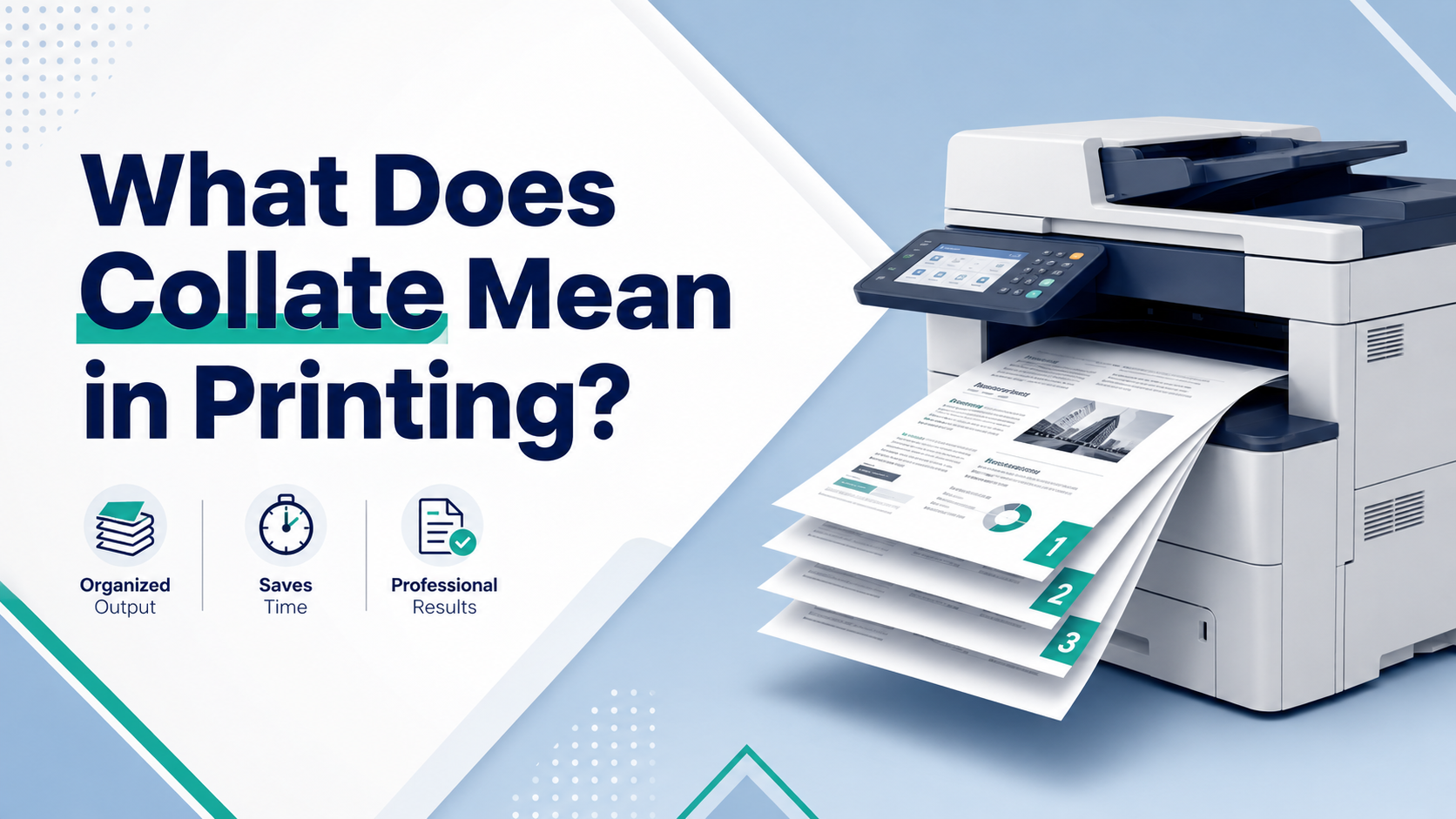
In printing, to collate means to arrange the pages of a document into the correct order and to keep each complete copy grouped together as its own set. Instead of printing a stack of every page one at a time, a collated print job produces finished, ready to read sets one after another.
So if you print three copies of a 10 page report with collating turned on, your printer produces pages one through ten in order, then repeats that same one through ten sequence two more times. Each set comes out of the tray already assembled and ready to staple, bind, or hand out.
The term comes from bookbinding and publishing, where sheets have always needed to be gathered in the right sequence before binding. It carried over into office and commercial printing once multi page documents and multiple copies became routine.
How Collating Works and Why It Matters
Every modern printer and copier gives you a choice between two ways of handling multiple copies of a multi page file. Understanding the difference helps you avoid wasted paper, wasted time, and documents that come out in the wrong order.
It Saves Time on Large Print Runs
Sorting pages by hand after printing is slow and tedious, especially once you are dealing with dozens of copies of a lengthy document. Collating shifts that sorting work onto the printer itself, so what comes out is already in the right sequence.
It Reduces Errors
Manually stacking and reordering pages is where mistakes creep in, a missing page here, a duplicate there, a set assembled out of order. A collated print job removes most of that risk because the printer follows the same sequence every time.
It Produces Ready to Use Sets
Because each copy comes out complete and in order, collated documents are ready for stapling, binding, or distribution the moment they leave the printer, with no extra assembly step needed.
Common Situations Where Collating Is Used
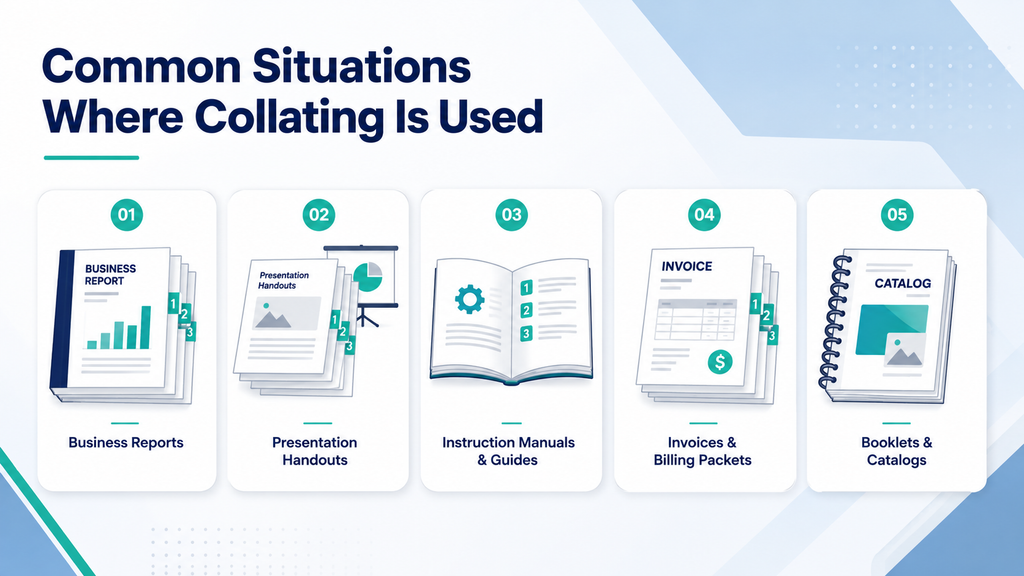
Collating shows up constantly in day to day business and print projects. Here are some of the most common examples.
| Use Case | Why Collating Helps |
| Business reports | Keeps every section in the order it was written, no manual sorting needed before a meeting. |
| Presentation handouts | Each attendee gets a complete, correctly ordered set of slides without extra prep work. |
| Manuals and guides | Step by step instructions stay in sequence, which matters for the reader to follow along. |
| Invoices and billing packets | Line items and totals print in a consistent, logical order for every customer set. |
| Booklets and catalogs | Pages are ready for binding or saddle stitching the moment they come off the press. |
Collated vs Uncollated Printing: What Is the Difference?
Once you understand collating, the opposite setting is easy to grasp.
Collated Printing
Collated printing arranges every copy of a multi page document in full, correct sequence before moving to the next copy. For a 5 page document printed three times, a collated job prints pages 1, 2, 3, 4, 5, then repeats that full sequence twice more.
Uncollated Printing
Uncollated printing, sometimes called non collated printing, groups identical pages together instead of complete sets. For that same 5 page, three copy job, an uncollated run prints three copies of page 1, then three copies of page 2, and so on until every page has been printed three times.
Uncollated printing still has its place. It works well for single sheet items like flyers, posters, business cards, or any print run where the pages do not need to stay in a specific reading order. It can also be faster for very large batch jobs where each page is being finished or cut separately.
Automatic vs Manual Collating
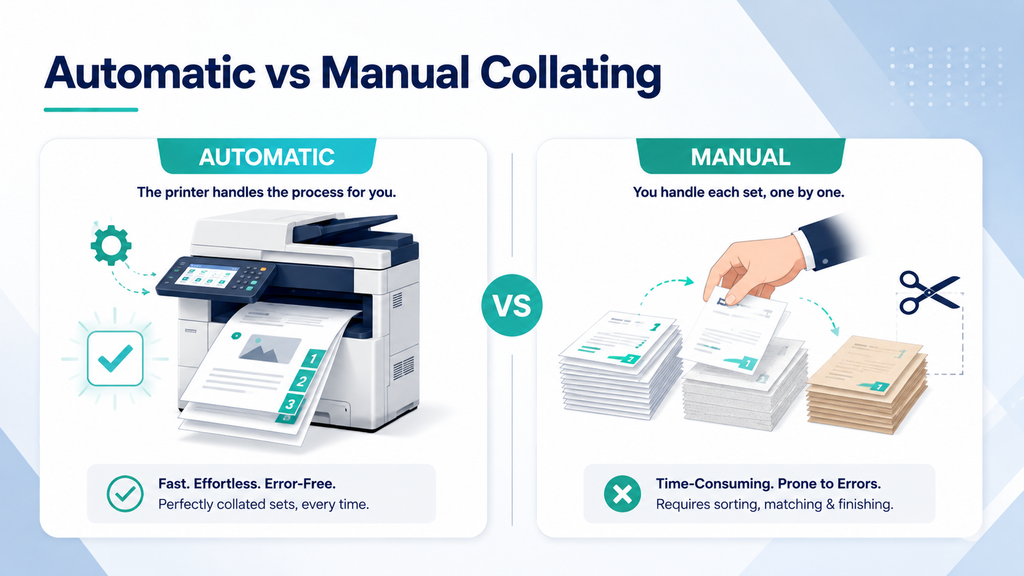
Most of the time, collating is as simple as selecting the collate checkbox in your print dialog box or on your printer’s control panel, and the machine does the rest. This is automatic collating, and it is the default on the vast majority of home, office, and commercial printers.
Manual collating comes into play in more specialized situations, for example when a project mixes different paper stocks, requires separate print runs for different sections, or involves finishing steps like trimming that a printer cannot perform on its own. In these cases, each section may need to be printed and collated as its own separate run, then assembled by hand into the final sequence.
When You Might Need to Collate by Hand
A few scenarios call for manual collating even with modern printing equipment:
- Documents that mix bleed pages, where images run to the very edge of the sheet, with plain text pages that have a standard margin
- Projects using a gradual trim, where each sheet is a slightly different size than the one before it, common in some booklet and catalog formats
- Jobs that combine more than one paper stock or finish within a single document
In these cases, working with an experienced print and packaging partner who understands finishing and assembly saves a significant amount of time and reduces the risk of a misassembled final product.
How to Turn Collating On or Off
The exact steps vary by printer model and operating system, but the general process looks like this:
- Open the print dialog box from the application you are printing from
- Look for a setting labeled Collate, usually near the copies field
- Check the box to collate, or uncheck it to print uncollated
- If you do not see the option, check the Finishing, Page Layout, or Advanced tab in your printer’s driver settings
Most printers default to collated printing when you request more than one copy, since that is what most users expect for multi page documents.
Why This Matters Beyond the Office Printer
Collating is not just a home printer setting. It is a core part of how professional print shops and packaging partners assemble multi page materials at scale, from product catalogs and instruction booklets to presentation folders and printed inserts that ship inside a package.
If your business needs printed materials that pair with your packaging, whether that is an insert card, a folded instruction sheet, or a brandedcatalog or brochure, getting the page order and finishing right the first time saves you from reprints and delays.
At ZK Print Solutions, we handle both thecustom packaging and the printed materials that go with it, so your boxes, labels, and paperwork all stay consistent. Browse ourcustom labels orget in touch for a free quote on your next print run.
Final Thoughts
Collating keeps multi page documents organized, saves time on large print runs, and cuts down on the errors that come with manual sorting. Uncollated printing still has a place for single sheet jobs and certain large batch projects, but for anything that needs to be read in order, from reports to booklets to catalogs, collated printing is almost always the right call.
Whether you are printing in house or working with a print and packaging partner, knowing the difference between collated and uncollated helps you get the right result the first time.